The official Meta Ads MCP server URL is . Claude and eligible ChatGPT plans use the same address. Add it as a custom connector or app, choose OAuth, and sign in with the Meta account that can access your ad account.
Meta launched the server in open beta on April 29. It can expose campaign data and supported account actions without API keys or a Python setup. What your AI assistant can use depends on its plan, workspace settings, and Meta permissions. The steps below cover Claude and ChatGPT, plus a few prompts worth trying once the connection works.
Meta MCP server URL
The Meta MCP server URL is . Paste it into Claude as a custom connector or into ChatGPT as a custom app with OAuth. Both flows are covered step-by-step below.
The URL is the same in every language and every region. If you searched for it in Portuguese (_url do mcp do facebook_, _url de meta para mcp_) or Spanish (_url de meta ads mcp_), the answer is identical: . There is no separate URL per country.
TL;DR
The Meta Ads MCP lets an AI assistant work with your ad account through a normal chat. The server URL is . In Claude, you add it as a custom connector. In ChatGPT, you turn on developer mode and create a custom app. ChatGPT Pro supports read and fetch access; full write and modify actions are rolling out for Business and Enterprise/Edu workspaces. Both flows use OAuth, which means you log in with your Meta account and grant access to the ad accounts you want to expose.
What Meta actually launched
Meta released two things:
- An MCP server, which is what lets AI tools talk to your ad account. This is the one most marketers want.
- A CLI tool, which is a developer command-line version that needs Python 3.12+. Skip it unless you have an engineer.
The MCP gives your AI assistant four things it can do on your account:
- 1.Pull reports and insights (spend, ROAS, CTR, frequency, breakdowns)
- 2.Create and edit campaigns, ad sets and ads in plain English
- 3.Manage product catalogues
- 4.Check signal health (pixel, Conversions API, dataset quality)
That is the whole list. It does not write copy, design creative, or run experiments for you.
If you want the deeper breakdown of what the MCP exposes, what it misses, and why the creative side still needs a separate workflow, read our Meta Ads MCP API coverage breakdown.
What you need before you start
- A Meta Business account with admin or advertiser access to at least one ad account
- An eligible plan on the AI tool you want to use:
- Claude Pro or Team
- ChatGPT Pro for read and fetch access
- ChatGPT Business or Enterprise/Edu for full MCP actions, subject to workspace settings
- The Meta Ads MCP URL:
- About 5 to 10 minutes per tool
How to set up Meta Ads MCP in Claude
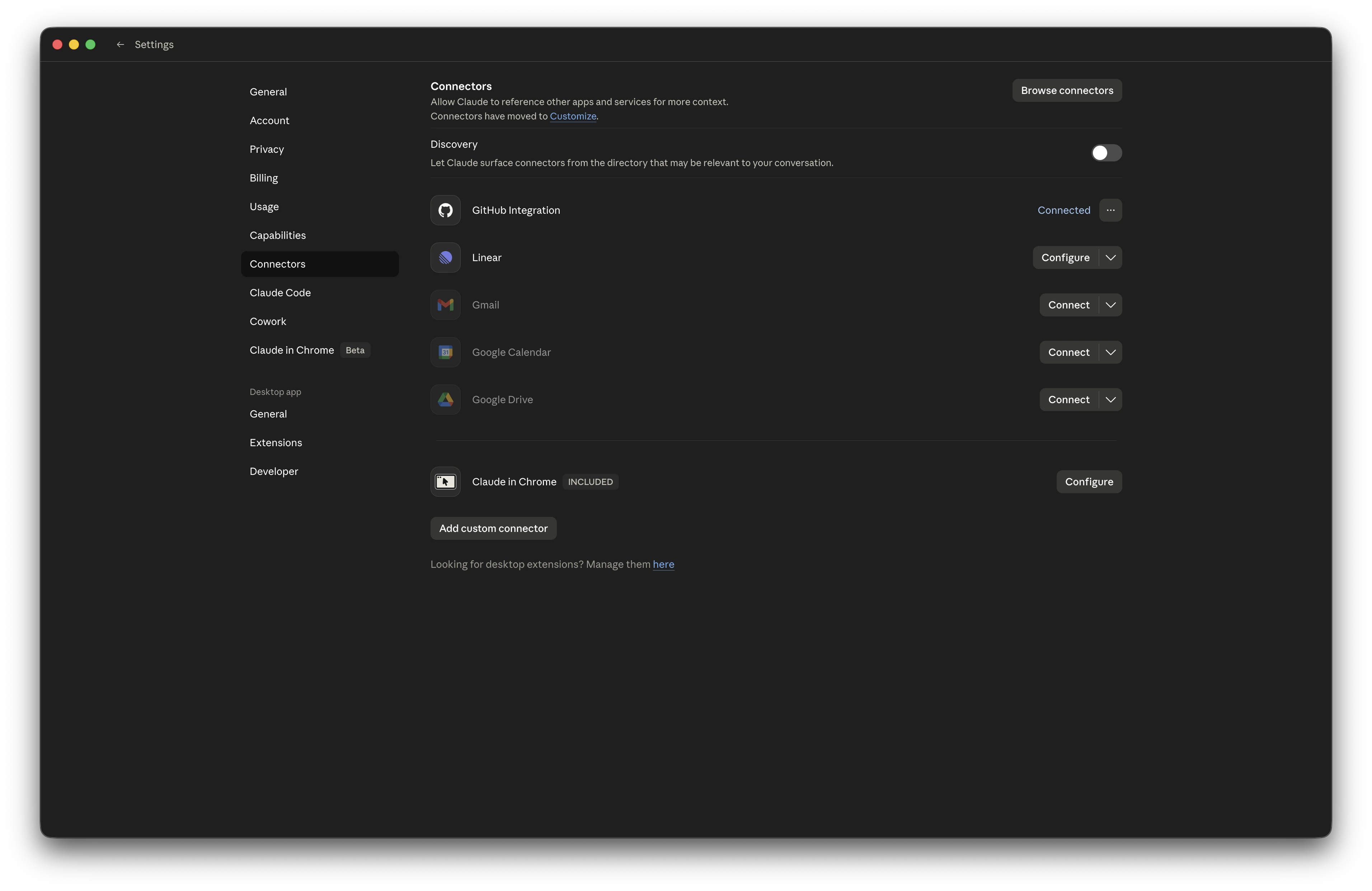
Setting up the Meta MCP in Claude takes about 5 minutes. Claude treats it as a custom connector: you add the server URL , log in with Meta, and grant access to your ad account. The full steps:
- 1.Open Claude on the web or the desktop app
- 2.Go to Settings, then Connectors
- 3.Scroll to the bottom and click Add custom connector
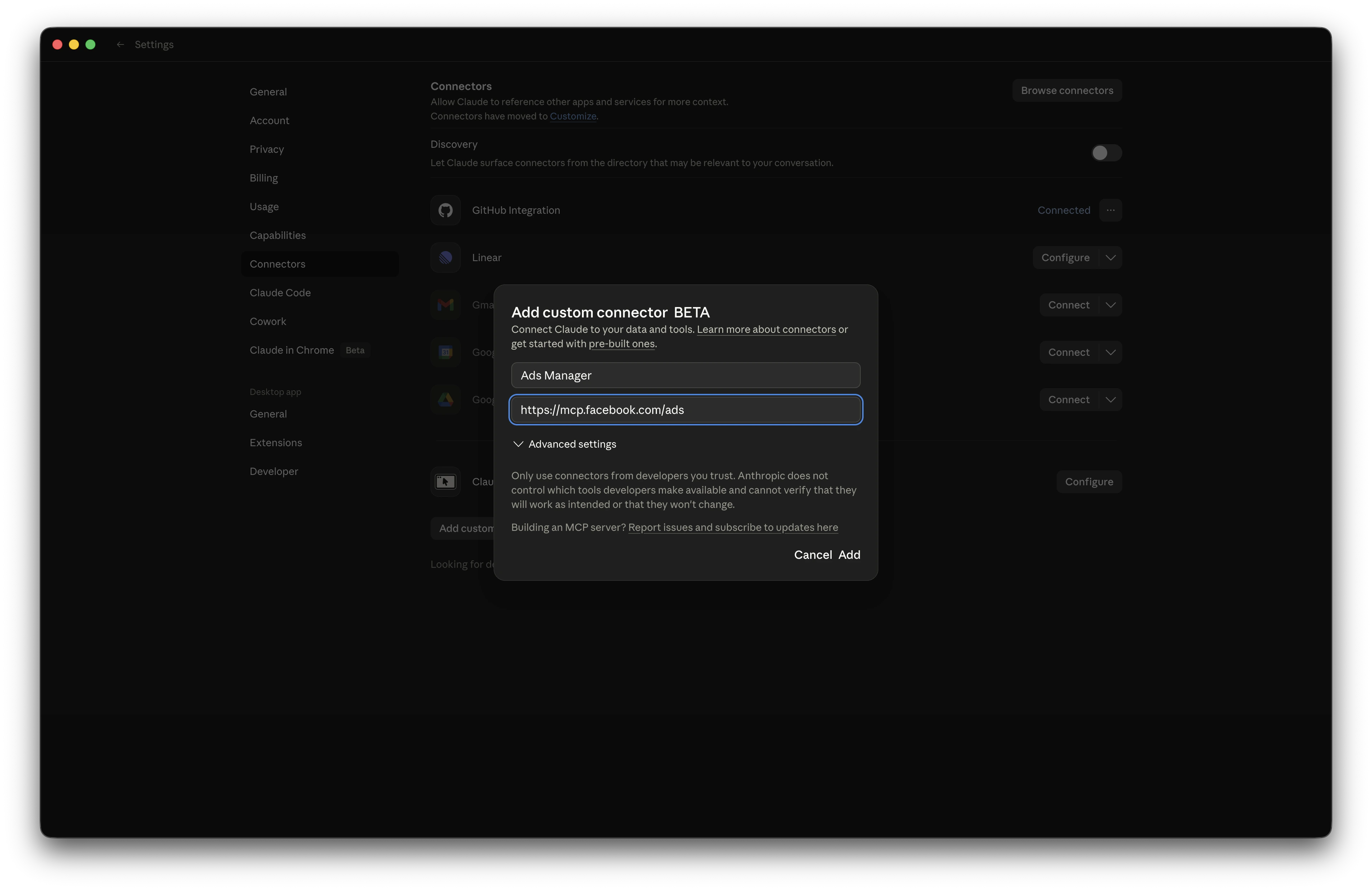
- 4.In the modal, set:
- Name: (or whatever you want to call it)
- URL:
- 1.Leave Advanced settings as default
- 2.Click Add
- 3.Claude will prompt you to log in to Meta. Pick the Facebook account that has access to your ad account
- 4.Approve the ad account access on the Meta side
To test it, start a new chat and ask: _"What is my total spend this month across all campaigns?"_ If Claude pulls a real number, you are connected. If it says it has no access, redo the OAuth step and double-check that the right ad account was granted access.
How to set up Meta Ads MCP in ChatGPT
ChatGPT does not have a built-in Meta Ads app yet, so you add Meta's MCP server as a custom app through developer mode. On Pro, custom MCP apps are limited to read and fetch access. Full write and modify actions are rolling out for Business and Enterprise/Edu workspaces, where admins control developer mode and app access.
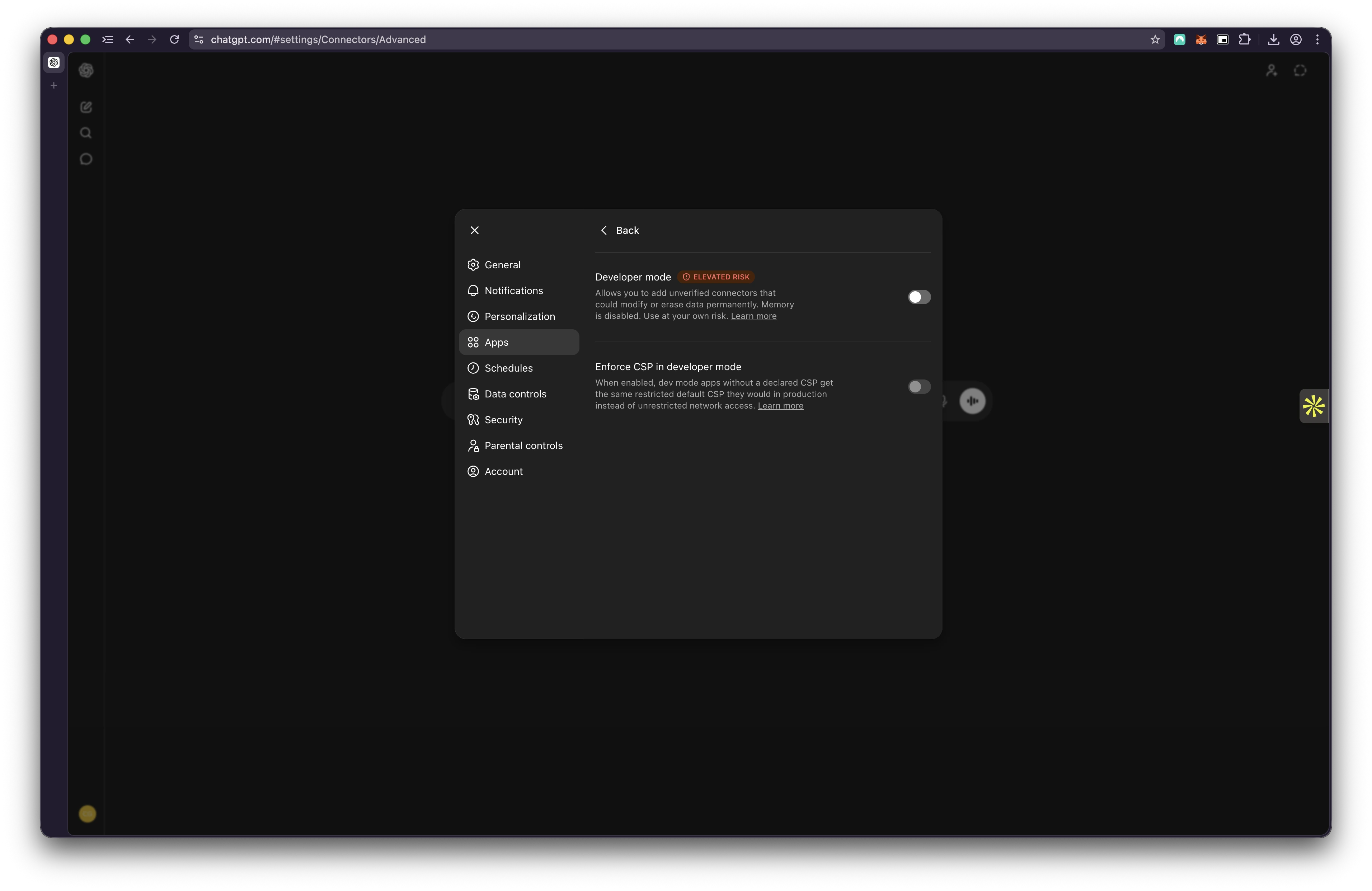
- 1.Open ChatGPT and go to Settings, then Apps
- 2.Open Advanced settings and turn on Developer mode
- 3.Go back to Apps and click Create app. In a managed workspace, an admin may need to enable developer mode or create the app first
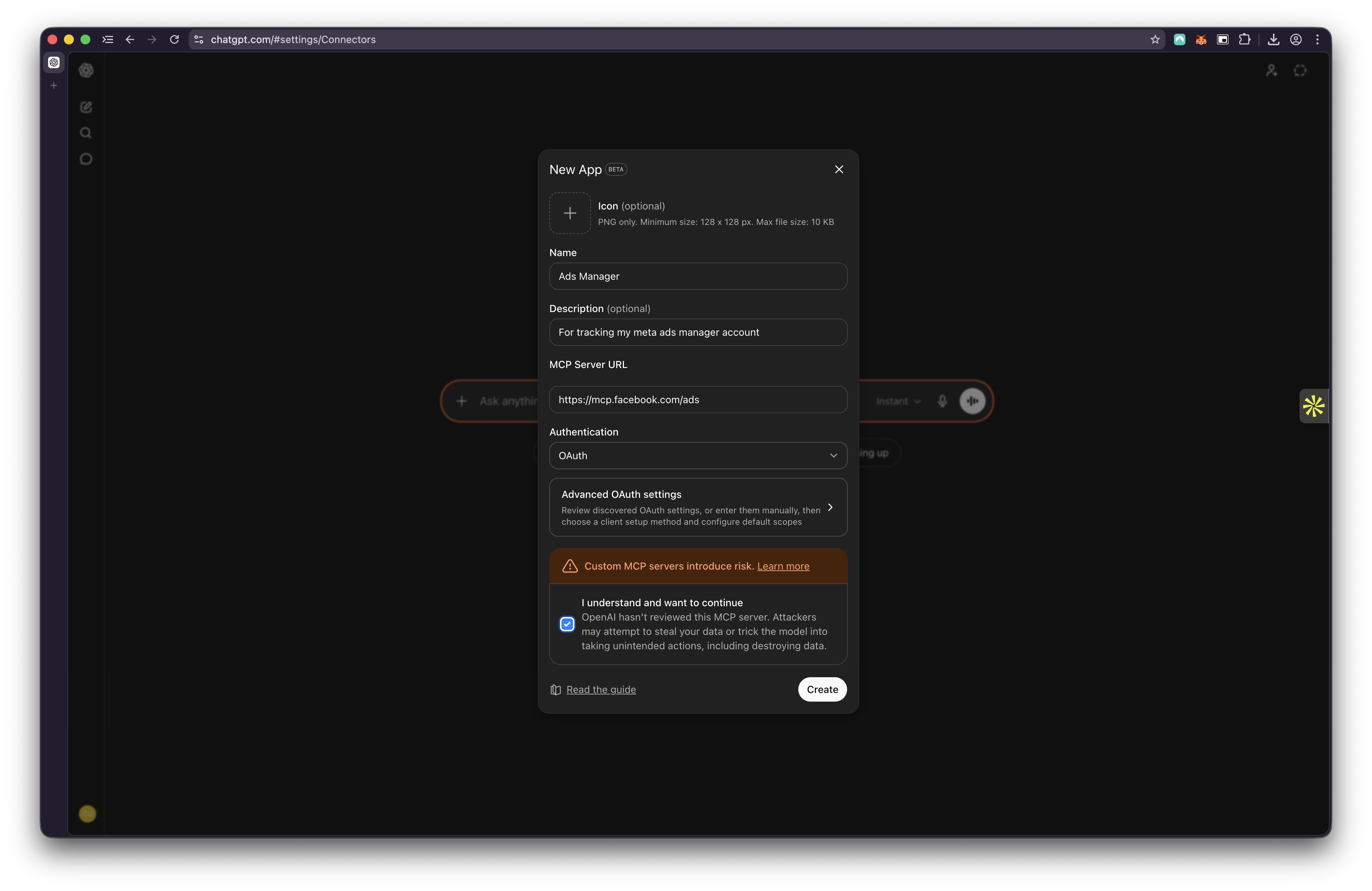
- 4.In the New App modal, set:
- Name: (or whatever you want)
- Description: optional, leave blank or write "Meta Ads MCP"
- MCP Server URL:
- Authentication: OAuth
- 1.Tick the I understand and want to continue box on the risk warning
- 2.Click Create
- 3.ChatGPT will open the Meta auth window. Log in and pick the ad account you want to grant access to
Why OAuth and not No Auth or Mixed
The auth dropdown gives you three choices: OAuth, No Auth and Mixed.
- OAuth is the right pick. The Meta Ads MCP requires you to log in to your Meta account so it knows which ad accounts you are allowed to access. That is what OAuth handles.
- No Auth is for MCP servers that are open and do not need a login. Meta's server is not one of them.
- Mixed is for servers that have some endpoints with auth and some without. Not relevant here.
If you pick the wrong option, the connection will fail when you try to query your account.
What about Gemini?
Gemini's MCP support today is mostly through the Gemini CLI, not the consumer chat app. There is no one-click Meta Ads connector in the Gemini app at the time of writing. If you are set on Gemini, the realistic option is the CLI, which needs terminal comfort. For a no-code setup, use Claude or ChatGPT.
Five prompts to try once you are connected
Setup is the boring part. Here is where it gets useful. Try these in any new chat after the connector is on. For more, see our 5 Claude prompts every Meta media buyer should save.
1. Monday morning report
Pull yesterday's spend, ROAS and CTR for every active campaign. Flag anything that is down more than 20% from the 7-day average.
The report you used to build by hand in Ads Manager, in one prompt.
2. Audience breakdown
Break down my best campaign last month by age, gender and placement. Tell me what stands out.
You get the breakdown and a written read on the data, not just a table.
3. Creative fatigue check
Find any ads with frequency above 3.5 and a CTR drop of more than 15% in the last 7 days.
The "which creatives are dying" question, answered in 10 seconds. For thresholds and how to read the results, see our ad fatigue guide.
4. Quick edit
Pause every ad in the [campaign name] campaign with a CPA above $40.
This requires a plan and workspace that allow write actions. Review the proposed change before it runs, and test it on a low-stakes campaign first. ChatGPT may require confirmation based on the action and workspace controls.
5. Signal health check
Are there any issues with my pixel or Conversions API right now?
Catches tracking problems before they show up as a spend drop on Monday.
Things to know before you use it on a live account
- It is still in beta. Double-check numbers against Ads Manager when something looks off.
- It can edit and pause campaigns. Be careful which permissions you approve during OAuth.
- It does not make ads. It can launch ads from creative you already have uploaded, but it does not design or write them.
- It only exposes part of the Meta Marketing API. The current MCP is useful for reporting, management, catalogues and signal health, but it is not a full replacement for the API or Ads Manager.
That last point is worth thinking about. The MCP closes part of the ops side of media buying: reporting, launching, optimising. The creative side, which is what actually decides whether an ad works, is still a manual job. We have been working on that part at Adrio, a static ad builder for media buyers who care about creative quality. If creative is your bottleneck too, take a look. Otherwise, enjoy the new setup.
FAQ
Is the Meta Ads MCP free? The MCP itself is free from Meta. Your AI client may require an eligible paid plan or a managed workspace to connect it.
Can it spend money or launch ads without asking? Do not rely on a confirmation prompt as your only safeguard. Approval behavior depends on the AI client, the action, and workspace policy. Use read-only access unless you specifically need account changes, and review Meta permissions before connecting a live ad account.
Does it work with multiple ad accounts? Yes. You pick which ad accounts to grant access to during the OAuth step and you can change that later from your Meta Business settings.
Why OAuth instead of No Auth? Meta needs to know which user is asking and which ad accounts they are allowed to see. That is what OAuth does. No Auth would mean anyone with the URL could query your account, which is not how Meta's server works.
What if the connector keeps failing after I add it? Most failures come from the wrong auth option (pick OAuth) or the wrong URL (use exactly). If both are right, redo the OAuth step and make sure you grant the connector access to the ad account you want to query. For every error and fix, see our Meta Ads MCP troubleshooting guide.
Can it connect Facebook Lead Ads? It can create, edit, and report on Lead Ads campaigns like any other campaign. Pulling the actual submitted lead data is a separate Meta API, not the focus of the MCP, so keep using your CRM integration or Ads Manager to retrieve leads.
Is there a different MCP URL for ChatGPT or for other countries? No. The URL is everywhere. Claude and ChatGPT use the same server, and it does not change by region or language.
Does it replace Ads Manager? No. It sits on top of Ads Manager. Use it for daily reporting, quick edits and pulling insights faster. Use Ads Manager for deeper campaign building and bulk changes.