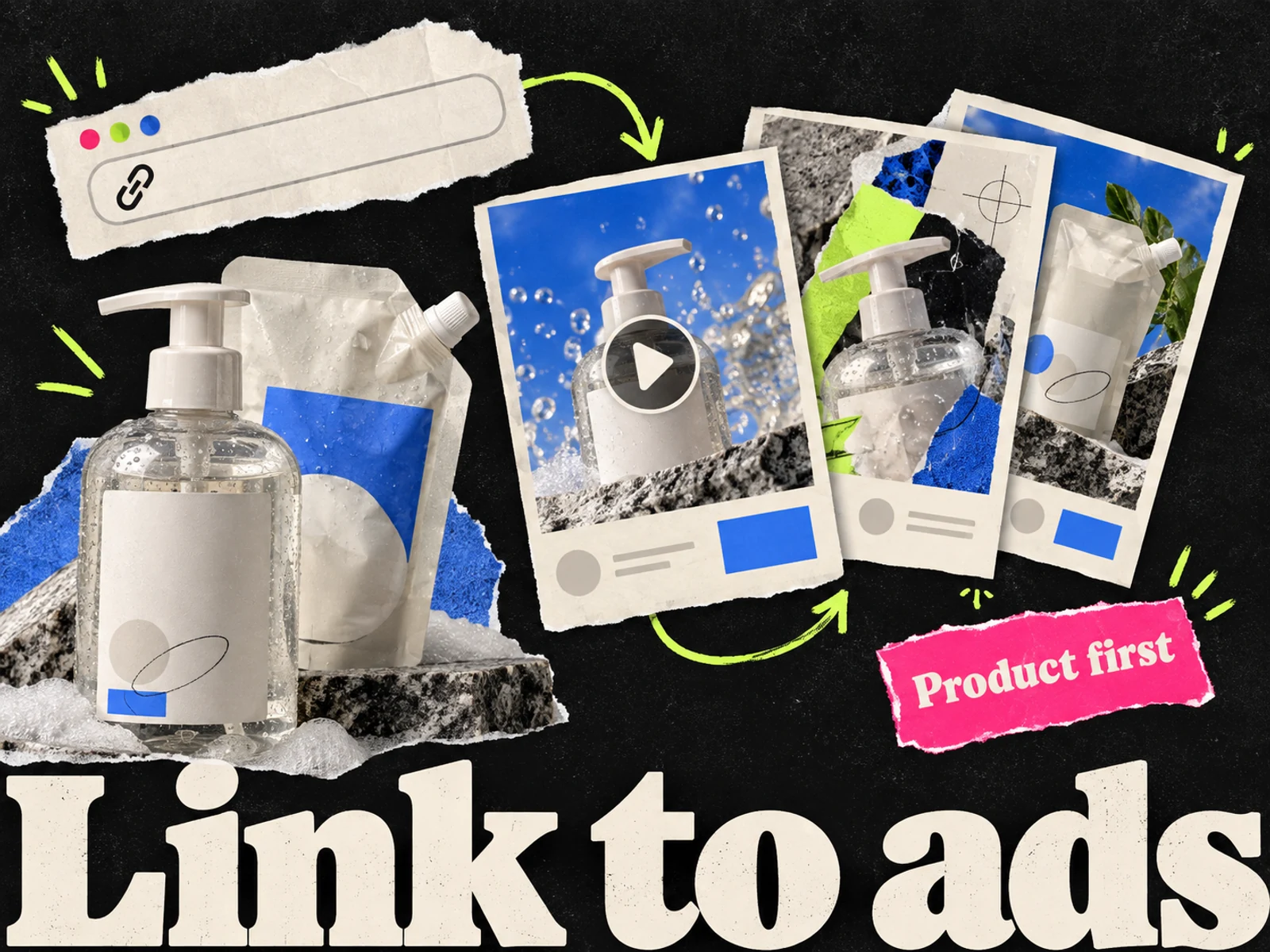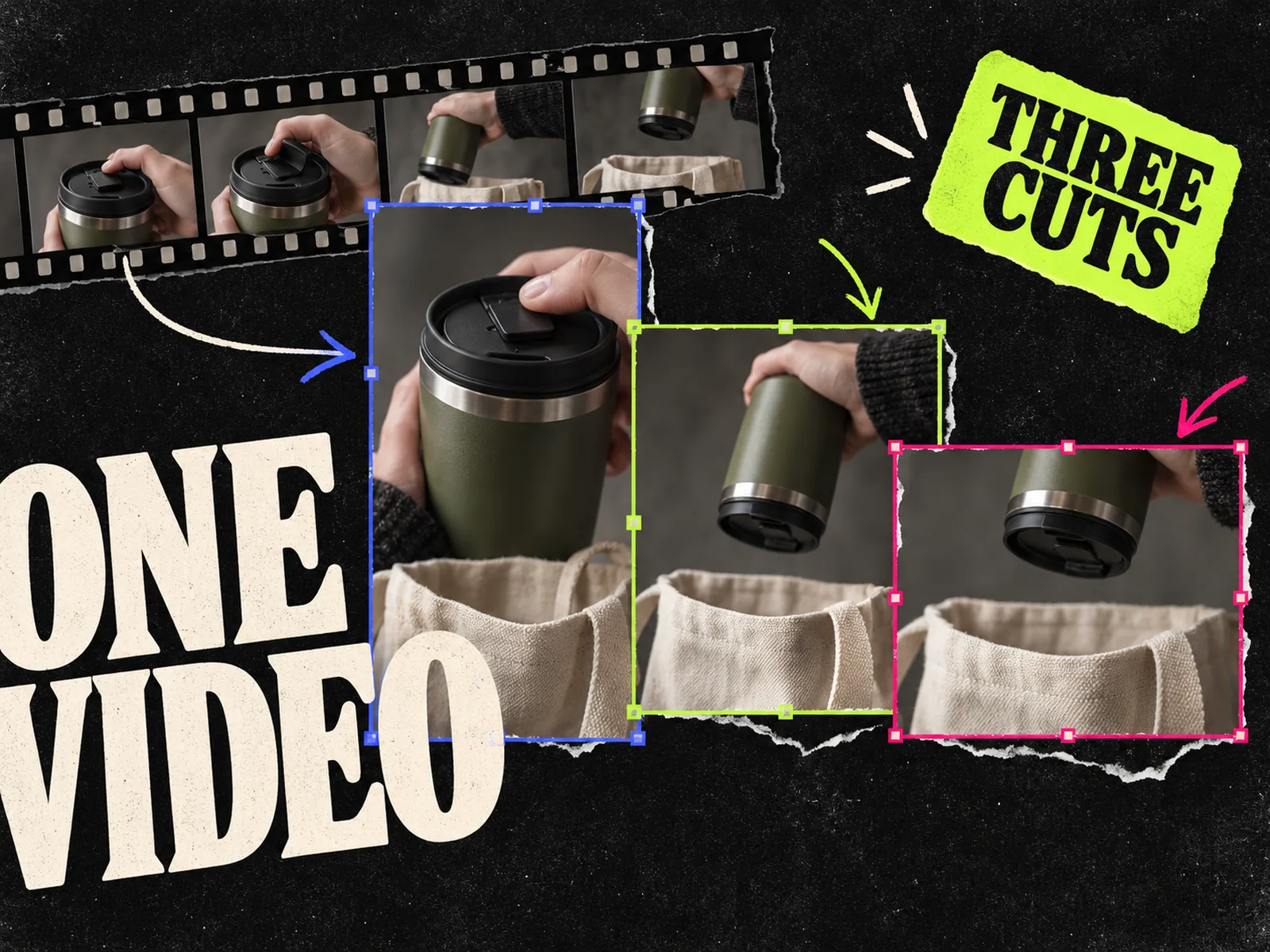
A multi-format video ad is one idea edited into separate files for the placements where it will run. The product, claim, and offer can stay consistent. The framing often cannot. A wide shot that reads well in Feed may cut the product out of a full-screen Reel.
For a small Meta campaign, plan a 4:5 Feed cut, a 9:16 Stories and Reels cut, and a square cut only if the placements you chose need it. Treat those as working canvases, not a promise that every impression will display every pixel. Meta can adjust aspect ratios in Ads Manager, but you still need to inspect the result. Its Reels guidance recommends vertical video with audio and key messages inside the safe zone.
This guide starts after you have a video concept. If you are choosing software to make the first version, see our multi-format ad creative tools comparison. Here the job is editing and checking the actual cuts.
Start with the one thing the video must communicate
Imagine an ad for a reusable travel mug. The idea is simple: show a lid being closed, turn the mug upside down, then show the dry bag it came out of. That sequence makes a specific product claim visible. You would still need to confirm that the real mug passes that demonstration before using it in an ad.
Write a one-sentence brief before opening the editor:
Show the verified leak test clearly enough to understand without narration, then end with the current offer.
That brief keeps the cuts on the same concept. Change the crop, text placement, and pacing, but keep the claim intact. Put the original footage and approved copy beside the edit. A resized ad can still introduce a new mistake.
Do not confuse placement versions with creative tests. Three aspect ratios of the same leak-test video help an idea fit different surfaces. A different opening scene or promise is a separate concept worth tracking on its own. Our Meta ad testing backlog guide explains how to label those decisions.
Plan the shot for the narrowest frame
The 9:16 cut is often the hardest. If the source footage leaves the mug at one edge and the hand at the other, a vertical crop may remove the action that proves the point. Check that crop before investing time in titles, sound design, or transitions.
Put the source shot on a 9:16 canvas. Scrub through the entire action, not just the first frame. Can you see the lid close? Does the inversion stay in frame? Is the dry bag visible long enough to register? If one answer is no, choose a different shot, reframe it with keyframes, or shoot a closer version. Blank bars will not bring back an action filmed outside the frame.
Then review the 4:5 and square canvases. They may have more horizontal room, but they can expose a different problem: tiny hands, a product that barely occupies the frame, or empty space that makes the demonstration feel slow.
| Working cut | What to preserve | Common edit |
|---|---|---|
| 9:16 Stories and Reels | The product action and readable claim inside the visible area | Reframe the subject, move captions away from interface controls |
| 4:5 Feed | The hook and product at phone size | Tighten the opening shot and enlarge the demonstration |
| 1:1 square | The complete action in a shorter vertical area | Use a closer crop or a shorter caption |
These ratios are a practical starting set, not a universal upload requirement. The Meta ad sizes guide gives the matching canvas dimensions and the trade-offs for each placement.
Make a cut for each placement
Duplicate the edit sequence. Name the copies by concept and ratio, such as and . Keep the original footage untouched. This is easier to review than a folder of files named , , and .
Work through each copy in the same order:
- 1.Set the canvas ratio and reframe every shot where the product or action moves.
- 2.Check the opening at phone size. If the first seconds need a long explanation, consider a clearer shot rather than more text.
- 3.Place captions and offer text after the crop is set. Text laid out on a wide master can land under Reels controls when cropped.
- 4.Review the final frame. The product, offer, and next action should still make sense when platform controls sit over the video.
- 5.Export a review file, then inspect that file rather than relying only on the editor preview.
Footage shot with all three frames in mind may need only small changes. Other scenes need a different edit. A close-up that works as the opening in a Reel may need a wider setup shot in Feed so the viewer knows what they are looking at. The concept is still the same if the message and claim stay put.
For footage made from a still product photo, the image-to-video guide covers a separate risk: generated frames can alter product details. A clean aspect ratio cannot rescue an inaccurate product shot.
Check captions, audio, and the safe zone
Watch every cut once with sound and once muted. Audio can carry emotion and timing in a Reel; the central product action and claim should also be understandable when sound is unavailable or off. If spoken words carry a necessary detail, caption them. Check spelling and timing against the approved copy, especially prices, quantities, and conditions.
Keep key elements away from the extreme edges of the full-screen cut. Meta's Reels guidance calls for messages in the safe zone and points advertisers to a safe-zone checker. The interface can vary by placement and device, so a fixed margin in your editor is only a starting check. Inspect the assembled ad in Ads Manager.
Do not bake a fake button into the bottom of the video without looking at Meta's actual CTA. A decorative box can collide with the platform button or suggest a tap target that does nothing. Review the ad with its real CTA and destination attached.
Music deserves a separate rights check. A track you can use in an organic post is not automatically cleared for a paid ad. Use music you have rights to use for advertising, or check the commercial-use terms of the library available in your account. Save the source and license record with the project.
Review the delivered ad, not just the exported files
The three exports are inputs. The finished ad also has a Page identity, primary text, headline, CTA, destination, placement settings, and possibly automatic creative adjustments. Meta's Reels page says Ads Manager supports placement asset customization and aspect-ratio adjustments. That makes the ad-level preview part of production, not an optional glance after approval.
Open each chosen placement in Ads Manager and ask:
- Is the right file assigned to this placement?
- Does the first frame communicate the same idea as the opening seconds?
- Are the product and claim visible during the important action?
- Do captions and offer text stay clear of interface controls?
- Does the CTA match the landing page?
- Are automatic crops or enhancements changing an approved detail?
Our Meta ad preview tools guide walks through both checks. If the ad fails a placement, fix that cut and preview it again. One Feed screenshot cannot approve the batch.
Keep a small handoff record
You do not need a sprawling asset database for three files. A short handoff sheet prevents the wrong version from reaching the ad account.
| Field | Example for the mug ad |
|---|---|
| Concept | Verified leak test |
| Approved claim | Mug stays sealed during the filmed inversion |
| Source footage | Approved product demonstration, take 4 |
| Placement files | Feed 4:5, Reels/Stories 9:16, square 1:1 |
| Copy version | Offer sheet dated for this campaign |
| Reviewer | Product owner and media buyer |
| Final check | Each selected placement previewed in Ads Manager |
For a faster handoff, export the three review files together and ask for comments on the named cut and timestamp. is actionable. is not.
Adrio can help create a starting video concept and revise scenes, according to its current product workflow. The placement files still need the same crop, claim, and preview checks before launch. If you are deciding whether to use static or video for the original idea, the static versus video guide gives you a useful starting decision.
Questions teams ask about multi-format video ads
Can one video file run across all Meta placements?
Ads Manager can adjust a single asset for different placements, but that does not guarantee a good composition in each one. Preview the actual result. If the crop hides the product, claim, or action, supply a placement-specific cut.
Do all three cuts count as three creative tests?
Usually no. They are versions of one concept for different placements. Track them as separate files, but keep the concept ID shared. If you change the hook or offer, record that as a new test variable.
Should the 9:16 version be the master?
Use the narrow frame as an early constraint, especially when shooting new footage. You can still edit from a higher-resolution source with room to reframe. Do not stretch a low-resolution vertical export into the other ratios and call it a new cut.