A paused product demo can leave you with a blurry hand or a product hidden behind a caption. A thumbnail maker lets you choose a better still and give it a readable title.
Start with Canva if you want a template you can adjust quickly. Consider Adobe Express if your assets already live in an Adobe workflow. Use Photopea when you need to work on a layered PSD. All three can help make the image; choosing where and how that image appears is a separate part of the ad setup.
This comparison draws on the vendors' linked documentation, checked on September 16, 2026. The workflow and example below are editorial recommendations, not results from a controlled tool test.
Choose a thumbnail maker for the job
| Tool | Useful starting point | What to check before committing |
|---|---|---|
| Canva | A thumbnail template with your own video still and headline | Whether the design exports at the dimensions you need with the assets your plan includes |
| Adobe Express | A video still with your established fonts, colors, and logo | Which branding and editing features are available in your account |
| Photopea | A PSD that needs precise layer edits | Whether the next person can open and revise the saved source file |
You do not need a separate subscription just because an editor calls a template a "YouTube thumbnail." Check whether your existing design tool can produce the required image first. The template's name does not establish the right dimensions for a Meta placement.
A thumbnail, an opening frame, and a static ad do different jobs
A thumbnail is the still image used to represent a video. An opening frame is part of the video itself. A static ad is a standalone image creative with its own message.
That distinction matters during handoff. Saving a JPG beside an MP4 does not insert the image into the video or attach it to an ad. The person setting up the campaign needs to know what each file is for.
Before designing a custom cover, inspect the controls for the exact video and ad setup you plan to use. Can you upload an image, select a frame, or only use an automatically chosen image? Resolve that before promising a client a particular cover.
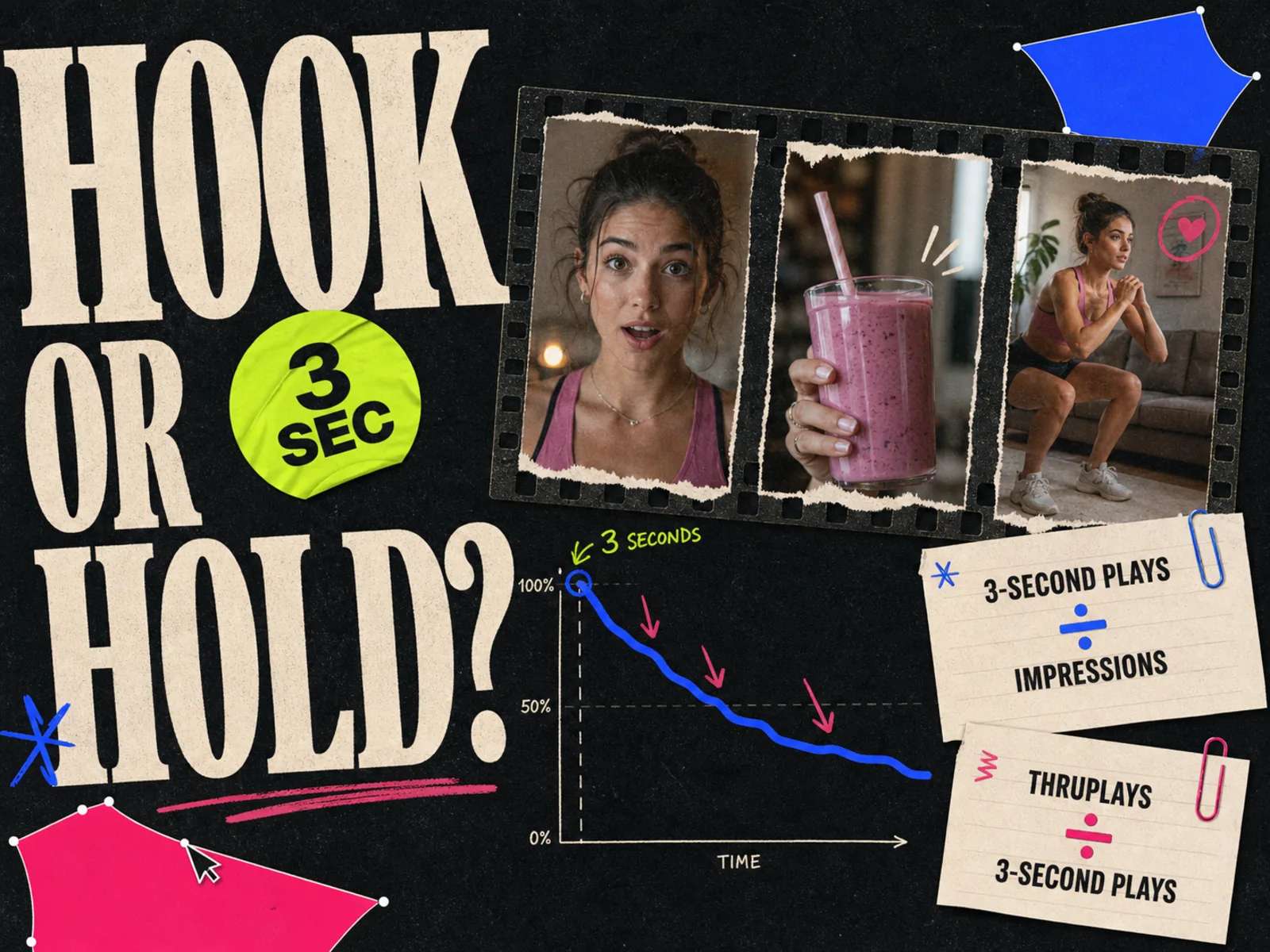
The opening still needs to work when playback begins immediately. Keep the product and message understandable in the footage too. Our video hook and hold rate guide explains how to assess the opening and the rest of the video separately.
Canva: start with a template
Canva's thumbnail maker lets you choose a template, upload your own images, add text and design elements, and download the result. Start here if you would rather edit an existing layout than build one from scratch.
Try this workflow:
- 1.Set up a canvas for the intended destination. Use a thumbnail template only if its proportions fit.
- 2.Replace the sample photograph with a clear still from your video or an approved product photo.
- 3.Replace the sample headline with the promise the video actually delivers.
- 4.Remove decorations that compete with the product.
- 5.Download the image and open that file for review.
The template is a starting layout. A reaction face, arrow, or oversized badge may make sense for a creator's video and feel misplaced on a quiet product demonstration. Keep the elements that help explain your particular video.
Adobe Express: build around approved brand assets
Adobe Express's thumbnail maker supports templates, blank canvases, uploaded photos, and branding with logos, colors, and fonts. Adobe also describes Brand Kit use for keeping those assets together.
For a recurring product series, start with one approved composition. Leave space for the subject and a short title. Make the next version by replacing the still and title, then review the balance again: a tall bottle and a wide pair of shoes will not occupy the same space comfortably.
Check the features available in your plan before building the workflow around them. A useful trial is one real cover plus a revision request from a teammate. Ask them to change the headline and replace the image. That reveals whether the file is easy to maintain after the original designer hands it over.
Photopea: keep control of the source layers
Photopea is worth considering when you already have a PSD or want to keep the product, background, headline, and logo on separate layers. Its layer documentation describes layer ordering, locking, naming, and duplication.
Name the layers so another person can find them. "Product photo" and "Cover headline" are more useful than a stack of numbered copies. Lock the background once you are happy with its position.
Save the editable document through File > Save as PSD. Then use File > Export As to create the PNG or JPG you will hand off. Photopea's saving guide distinguishes the PSD source from those distribution formats and documents the export controls.
Keep both files. The exported image is convenient to upload; the PSD is what you need when someone changes the offer later.
Build two covers from one product demo
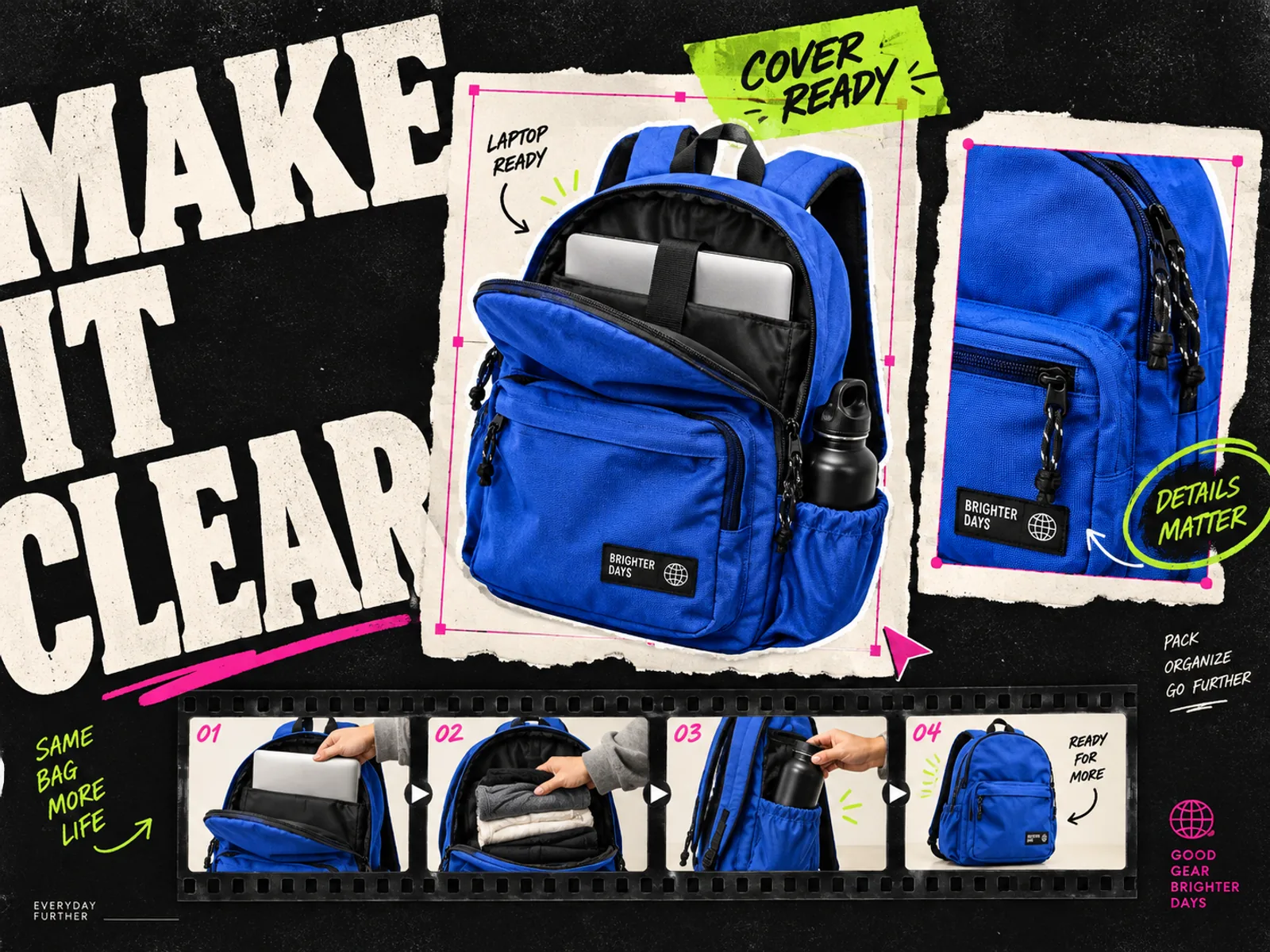
Imagine a short video showing someone packing a cobalt backpack for a workday. It demonstrates a laptop compartment and room for everyday items. This is an illustrative brief, not a campaign result.
Choose a sharp still where the compartment is visible. Use that same still for two cover options:
| Version | Cover text | Composition |
|---|---|---|
| A | Pack for work | The open backpack fills most of the image; text sits in a clear area beside it |
| B | Laptop fits here | The compartment gets a tighter crop; text points attention to the demonstrated feature |
Both covers refer to something the footage shows. Neither needs an invented discount, customer quote, or unsupported capacity claim.
These options change both the message and crop, so treat them as two overall directions. If you want to isolate the headline, keep the image and layout identical and change only the words.
Shrink each option to its likely display size. Ask a teammate what video they expect to see. If they expect a waterproofing test but the footage shows packing, revise the cover.
Choose the clearer option for the first handoff. Keep the alternative as an editable source instead of exporting a large batch of barely different files.
Check the destination before calling the cover finished
Use the destination's current upload requirements for dimensions, aspect ratio, file type, and file size. A landscape thumbnail preset is not a universal ad specification. For the surrounding Meta creative files, our ad sizes guide gives you a starting reference.
Open the exported image at full size and at a small display size. Check the product edge, headline, and any small print. If the cover relies on a tiny qualifier to make its main claim accurate, rewrite the claim.
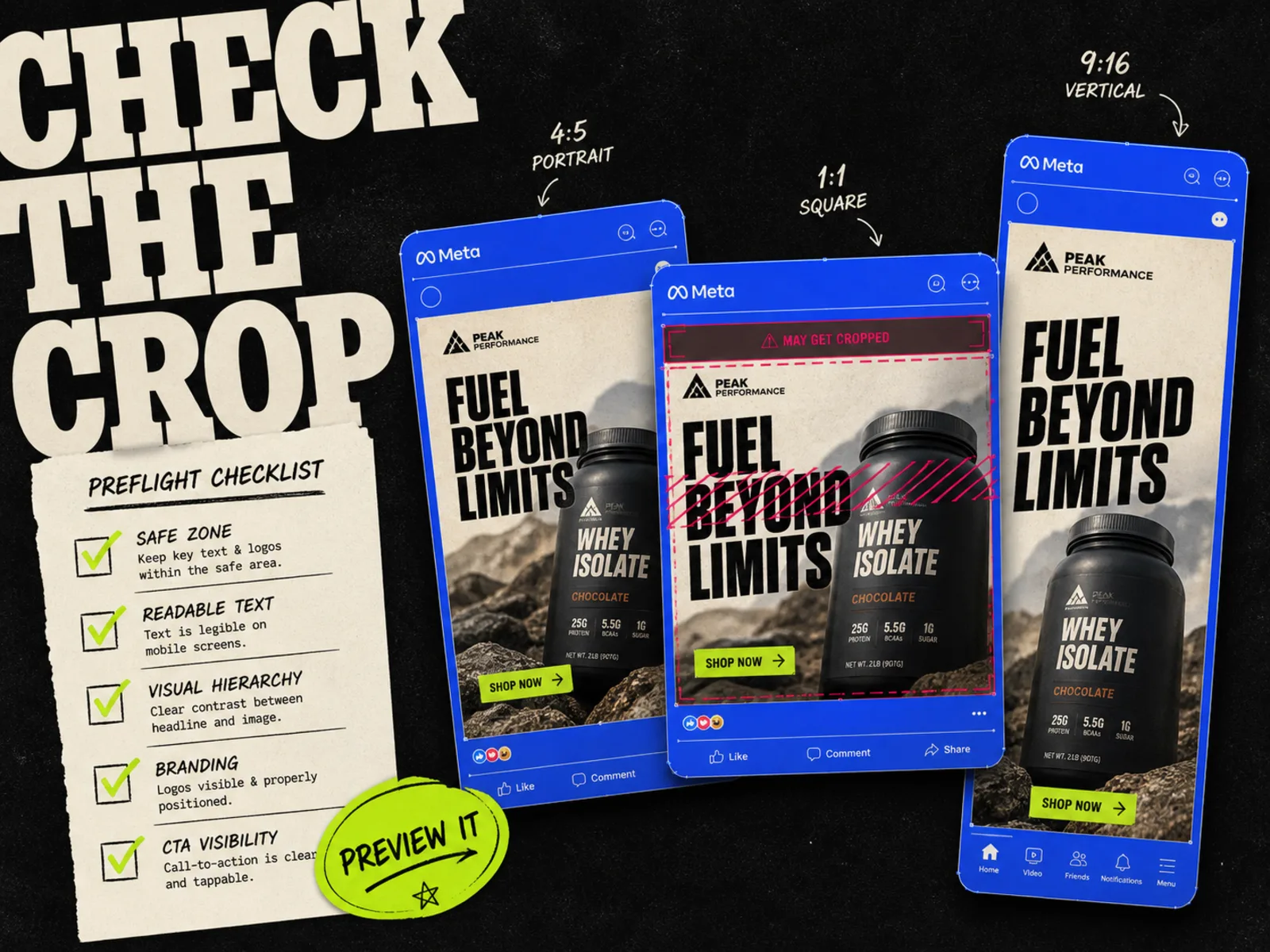
Then check the actual ad preview. Confirm that the intended cover is attached where the workflow supports it, the crop is acceptable, and the video opening carries the same message. Use the placement preview checklist for the rest of the ad.
If you test covers, first confirm that the tested placement displays them. Keep the video and other ad settings consistent where possible, and record what changed. If you change the footage too, you will have a harder time knowing what caused a difference in results.
Hand off the cover with the right video
Give the files matching identifiers, such as "backpack-workday-v01.mp4" and "backpack-workday-v01-cover.jpg." Include the source design link or PSD and a short note about the intended placement. If the campaign setup uses a frame selected from the video, record that choice instead.
For a client reviewing several options, a PDF review pack can place the covers beside their video filenames and revision notes. Keep that review document separate from the upload assets.
Adrio turns product context and ad references into editable Meta static variations. If you adapt one of those images for a video cover, compare it with the finished footage. Even a good static concept may promise something the video never shows.
FAQ
Which online thumbnail maker should I start with?
Start with the editor your team can already revise in. Canva suits template-based work, Adobe Express suits an existing Adobe workflow, and Photopea is useful for PSD layers. Make one real cover before choosing a new tool.
Can I use a static ad as a video thumbnail?
You can adapt its design if the destination accepts a custom image. Simplify it for the display size and make sure its promise matches the video. Check the crop and preview before approval.
Should I add the cover to the beginning of the video?
Only if that still is part of the intended opening. Uploading a cover image and adding a frame to the video are different actions. A separate cover does not repair a weak opening sequence.
Will a thumbnail maker improve ad performance?
It can help you make and revise a clearer image. It cannot establish whether that image improves results. That requires a suitable test and confirmation that viewers actually encounter the cover.