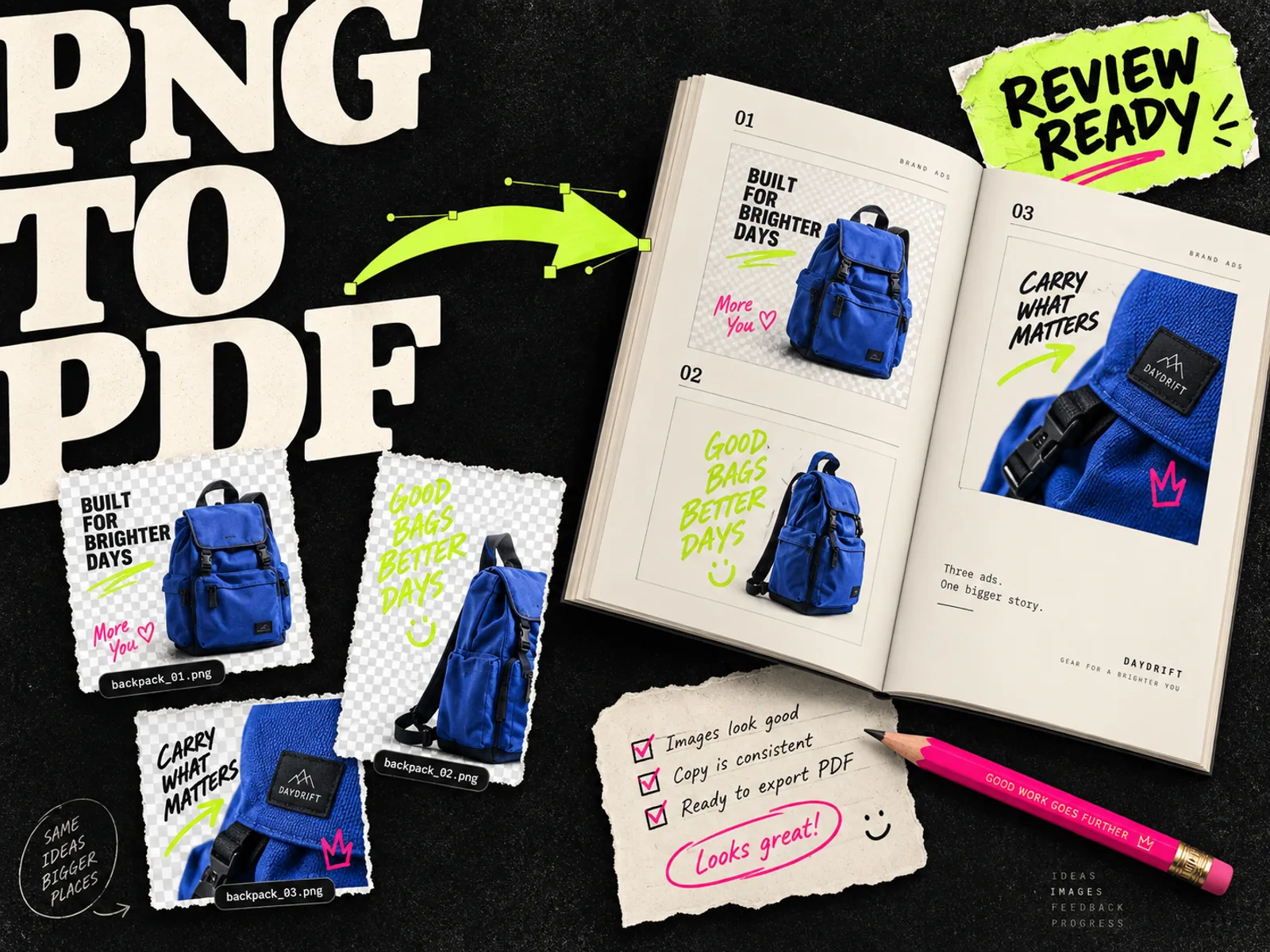
To convert PNG ad creatives to PDF online, upload the images to an image-to-PDF tool, put them in the order you want, and download the PDF. PDF24 works for a batch of images, Adobe Acrobat handles a quick conversion, and Canva gives you room to add labels and review notes.
A PDF full of unnamed ads creates another round of questions. Give each creative a clear label and enough space to read the offer, so the reviewer can point to the version that needs a change.
Keep the original PNGs. The PDF is a document for discussing the work; the image exports remain the files you use to prepare the campaign.
Choose a converter or build a review layout
| What you need | Tool to consider | What to check |
|---|---|---|
| Several PNGs collected in one PDF | PDF24 Images to PDF | File order and whether the result is one document |
| One PNG converted with little setup | Adobe Acrobat online | Download access and any account requirements |
| Ad images with titles, context, and questions beside them | Canva | Page layout, readable artwork, and selected export pages |
The tool details below come from each provider's documentation.
Use a converter when the reviewer already knows what each image represents. Use a page layout when you need to explain the difference between concepts or place several compositions beside each other.
Convert multiple PNGs to one PDF with PDF24
PDF24's Images to PDF tool accepts PNGs and lets you reorder uploaded images by dragging them. Its online conversion runs on PDF24's servers.
- 1.Open the tool and select the PNG files for this review.
- 2.Drag the images into the intended order.
- 3.Check the Join option when you want a single document.
- 4.Select Create PDF, then download the result.
- 5.Open the downloaded PDF and check its page count and sequence.
Try two images first if your batch mixes square and portrait ads. You will see whether the page layout clips an edge or shrinks one of them too much.
PDF24 embeds the images into the PDF. Combining large PNGs can leave you with a large attachment.
Convert a single PNG with Adobe Acrobat
Adobe's online JPG-to-PDF tool also accepts PNG files, despite the name.
Select or drag in the PNG, let Acrobat convert it, and follow the download prompt. Adobe's page describes sign-in and subscription requirements for some downloads and additional operations, so check what your account includes before planning a large batch.
Use this route for a single ad attachment. If the recipient needs notes beside the creative, the Canva layout below is a better starting point.
Use Canva when the review needs context
Canva's PNG-to-PDF workflow lets you upload an image, add design elements, and download through Share, then Download. Canva describes PDF Standard for digital copies and PDF Print for printed copies.
For an ad review, start with a page that has room for the creative and its label. Upload the PNG, position it without stretching it, and add the concept name outside the artwork. Build the remaining pages with the same layout, then download the pages you want as PDF Standard.
Check the export on the device your reviewer will use. A comfortable desktop layout can become a page of tiny ads on a phone. If the details are hard to read, give each ad more space.
Keep added captions separate from the ad image. Putting "Option B" over the offer makes it harder to judge the actual composition.
Give every ad a name the reviewer can use
Page numbers help someone navigate. Creative identifiers help the team act on feedback even when pages move.
Suppose you are reviewing two concepts for a backpack: easy packing and everyday commuting. Each has a portrait and square version. A simple page index could look like this:
| Page | Creative identifier | What the reviewer should check |
|---|---|---|
| 1 | A01-packing-portrait-v02 | Does the open-bag photo support the packing message? |
| 2 | A01-packing-square-v02 | Is the packing detail still visible in the square composition? |
| 3 | B01-commute-portrait-v02 | Is the product easy to identify in the commute scene? |
| 4 | B01-commute-square-v02 | Does the shorter layout keep the same message? |
Use your team's existing naming convention if it already works; these example labels are only a starting point.
Put the identifier next to the artwork, and keep the corresponding PNG filename aligned with it. A comment such as "A01-packing-square-v02: enlarge the bag opening" is easier to resolve than "change the second one."
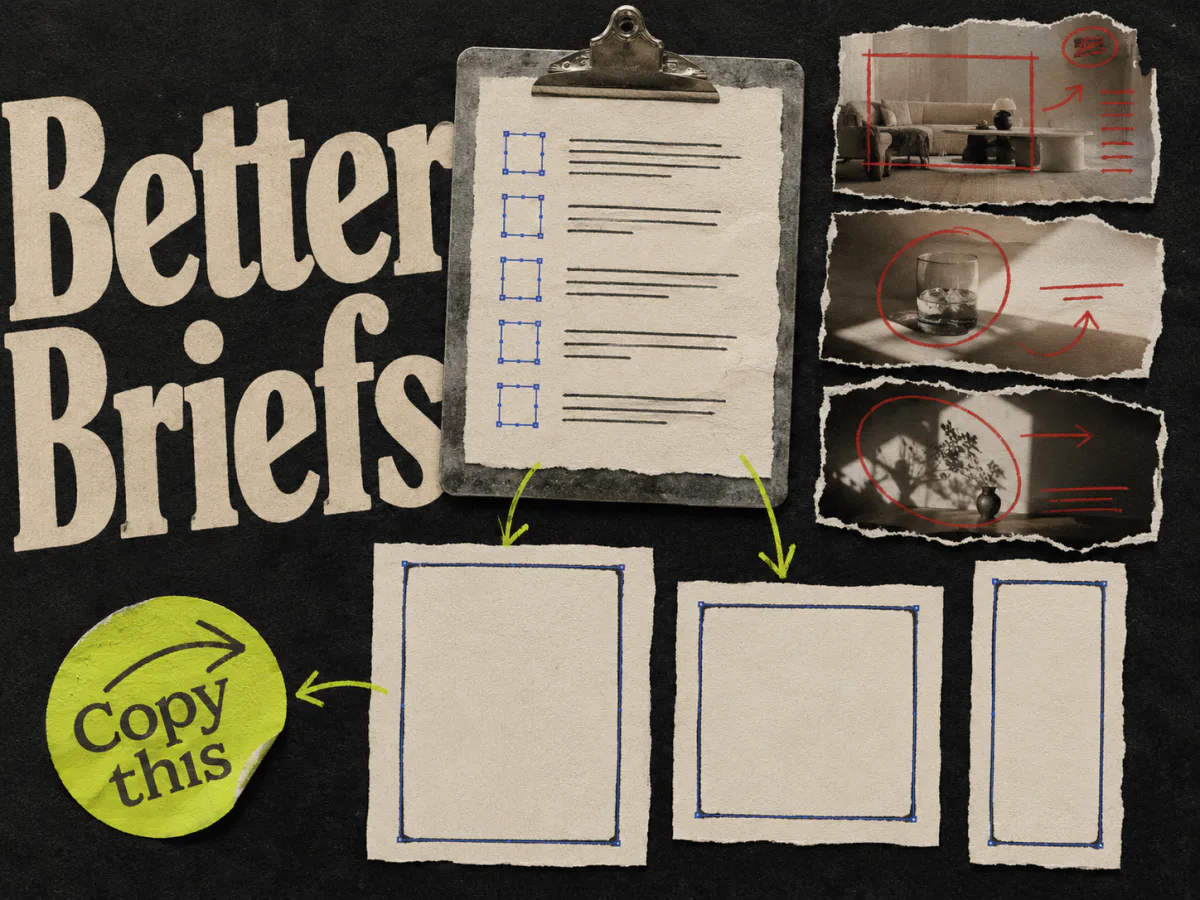
If the reviewer needs campaign context, pull the buying reason and requested deliverables from the ad creative brief. A few lines beside the artwork are usually enough.
Preserve the composition when images have different shapes
A PDF page and an ad canvas are separate things. You can place a portrait ad on a landscape review page, but you need to leave space around it rather than stretch it to fill the page.
Choose one layout for the review:
- One ad per page for close inspection of copy, product details, and cropping.
- A comparison page for judging the same concept across several compositions.
- A small overview followed by individual pages when the reviewer needs both orientation and detail.
Group the portrait and square versions of a concept together on comparison pages. That makes it easier to see whether the message survives the change in shape.
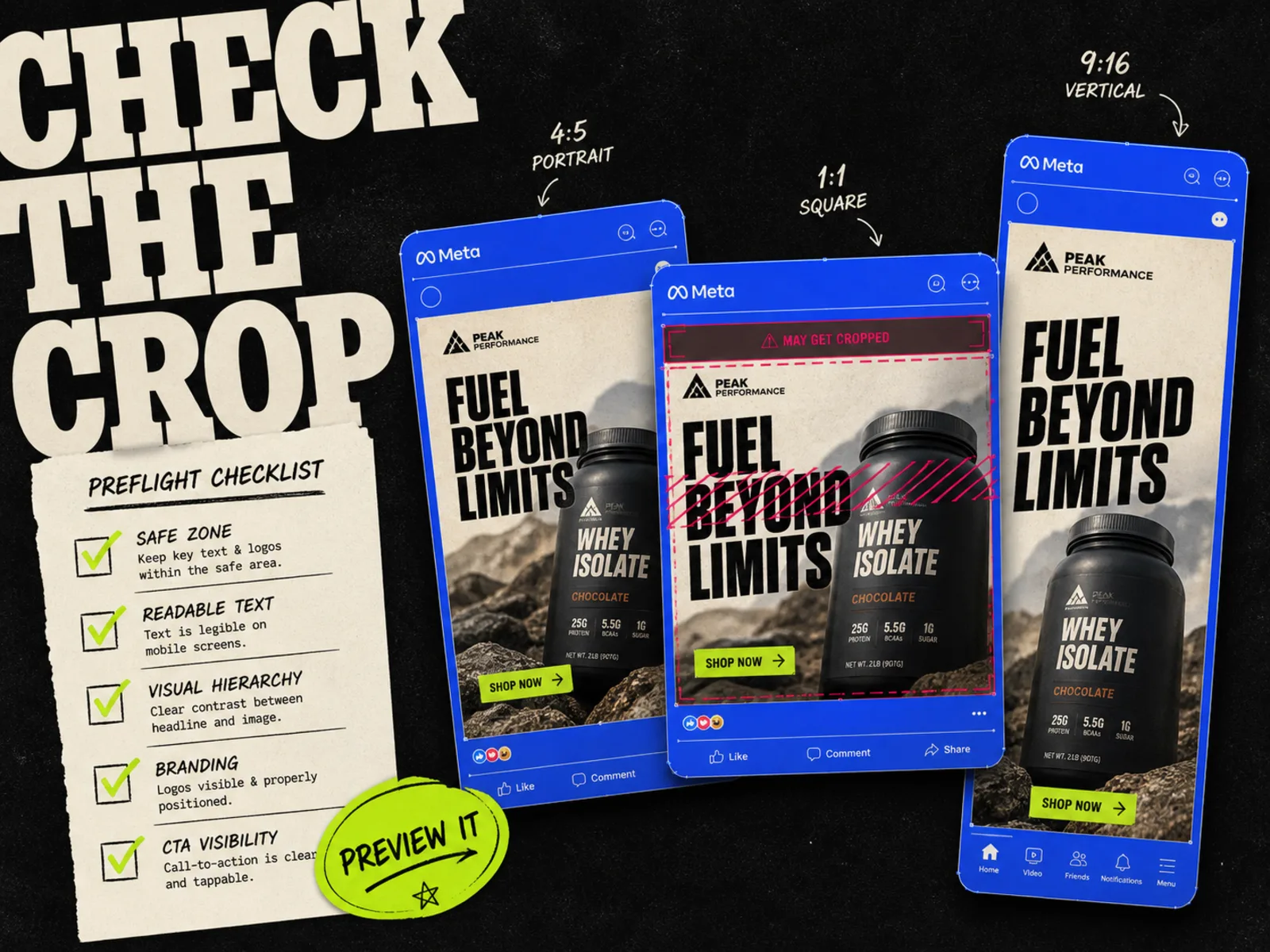
Avoid changing the actual ad dimensions just to make the review document tidier. Use the Meta ad sizes guide when preparing the source creatives, then fit those finished images proportionally into the PDF layout.
If the PNG has transparent areas, place it against the intended ad background before asking someone to approve its appearance. A white document page may hide the fact that a logo or pale headline needs a different background.
Check the downloaded PDF before sharing it
Open the finished document instead of relying on the converter preview. Check:
- 1.Every intended creative appears once, in the correct order.
- 2.The headline, offer, and conditions are readable without excessive zooming.
- 3.No image is stretched, clipped, or missing its background.
- 4.The creative identifiers match the source PNGs.
- 5.Any compression has left small type and product details clear enough to review.
If the file is too large to share comfortably, remove duplicate pages first. Then try a smaller review export or a PDF compression tool, keeping the originals. Compare the reduced file with the first export before sending it.
Converting a PNG to PDF does not restore editable text or layers from the original design. Make requested artwork changes in the source editor and replace the affected image in the review document.
When the creative is approved, use the corresponding image export to prepare the ad and run the Meta placement preview checks. The PDF shows your review layout; it does not show how the assembled ad will appear in each placement.
Where Adrio fits
Adrio helps with producing Meta static creatives: research ad references, create variations, edit the artwork, and export the compositions. Assemble those exports into a review PDF with one of the tools above when your client needs a single document.
Save the reviewed PDF with the matching image exports. The person preparing the campaign should be able to find the approved version from its label alone.
FAQ
Can I combine several PNG ad creatives into one PDF?
Yes. PDF24 provides an image-to-PDF workflow with file ordering. A design editor such as Canva is useful when you also need captions or comparison pages.
Will PNG-to-PDF conversion make an ad sharper?
No. Putting an image inside a PDF does not add missing image detail. Start with a good export and check that the conversion or compression has not made it worse.
Should I send one PDF or the individual PNGs?
Send the PDF when the recipient needs an ordered review document. Include or link to the original image files when someone needs to prepare the campaign or inspect an individual export.
What if I have a PDF and need PNG ad files instead?
That requires page-to-image conversion. Follow the separate PDF-to-PNG guide, which covers extracting a finished page, choosing its resolution, and checking whether the layout works as an ad.