Your designer has approved a product ad. Now the marketer needs to swap the offer, prepare another size, and make a version for a second product. Figma Buzz and Adobe Express can both handle that work. The harder question is who will make the next twenty edits.
Figma Buzz fits a brand team that designs in Figma and gives marketers controlled templates. Adobe Express fits a team that already keeps brand assets and everyday content in Adobe's workspace. Both can make bulk variations. Your team still has to check the claims and decide what to test on Meta.
We make Adrio. This comparison uses the vendors' documentation; we did not run a speed test or compare campaign results. Use one of your own briefs to see where the work gets stuck.
Figma Buzz vs Adobe Express at a glance
| Decision | Figma Buzz | Adobe Express |
|---|---|---|
| Starting point | A Buzz asset, a team template, or a design brought over from Figma Design | An Express design, template, or brand asset library |
| Brand control | Template guidelines can lock parts of an asset and expose approved fields | Teams and Enterprise plans support templates with brand restrictions |
| Bulk variants | Map CSV or XLSX columns to text and image fields | Map a CSV to text and assets; Adobe documents up to 249 variations |
| Static export | PNG, JPG, or PDF from Buzz | Export the finished design in the required format; verify the specific output in your trial |
| Best trial question | Can a marketer change the offer without disturbing the approved layout? | Can the team produce and revise the ad inside its existing Adobe workflow? |
Figma's Buzz guide describes templates, editing guidelines, and digital ad assets. Adobe documents brand setup and controlled templates. Feature access varies by plan, especially for Adobe's template restrictions, so check the plan attached to your team's actual seats.
Test the handoff
Take an ad your team has already approved. Give the marketer a narrow request: replace the headline, change the product photo, and export the Feed and Story versions. Watch what happens without the designer in the room.
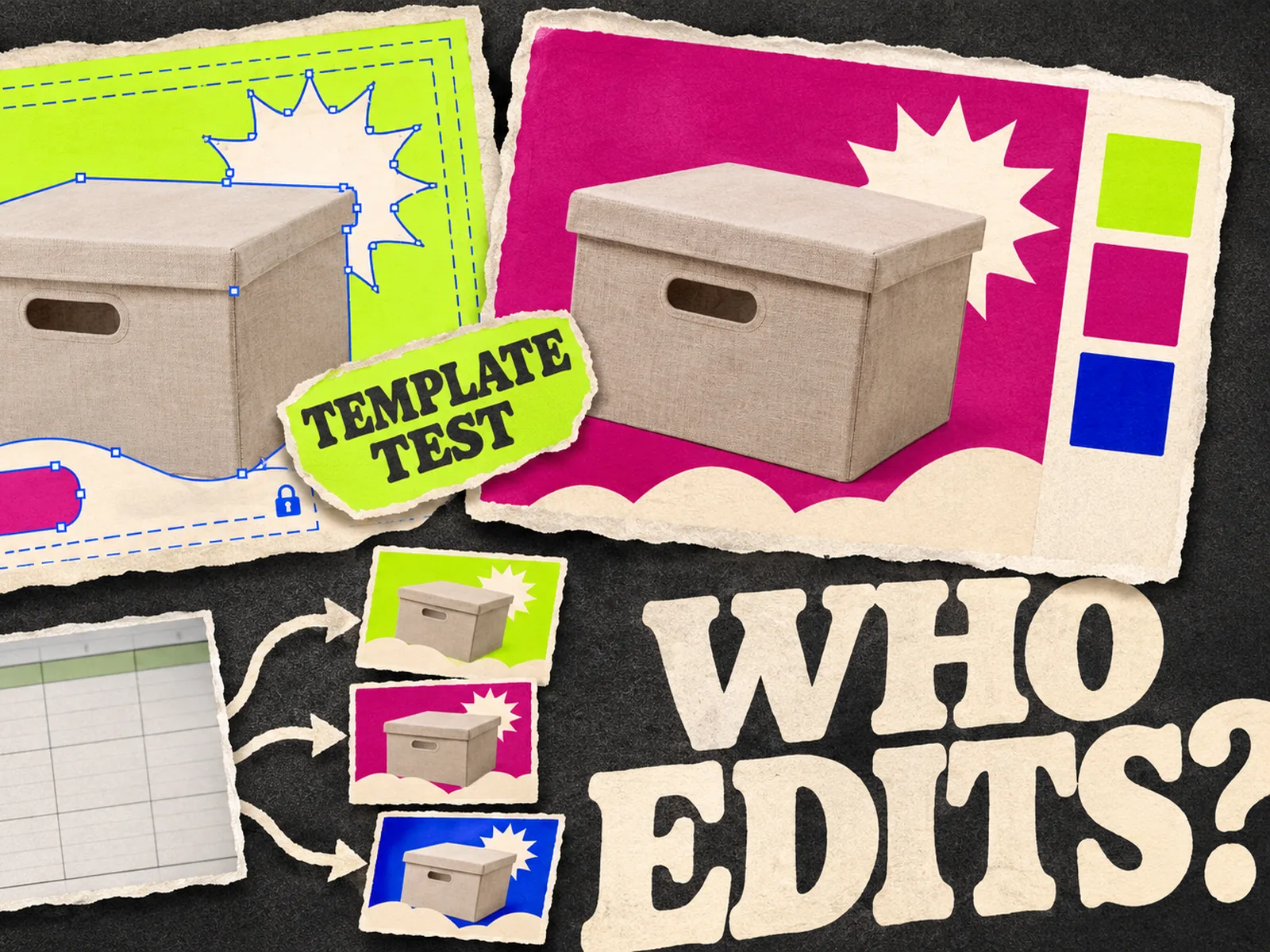
In Buzz, a brand designer can bring frames or components from Figma Design into a Buzz asset and publish it as a template. Guidelines limit editing to fields the author has unlocked. A local marketer could change a date or offer without moving the logo. But if the template also locks the product image, the campaign cannot swap products. Figma's bulk-create instructions say locked objects cannot be selected for bulk creation until their restrictions are removed. Try that with a real team template.
In Express, the team can keep logos, colors, fonts, graphics, and written guidelines in a brand. Adobe's brand documentation explains the setup. Controlled templates require a Teams or Enterprise plan. Check the actual production seats before relying on those restrictions.
After the edit, ask the designer whether the layout still follows the approved system. Note every access request and every element the marketer had to rebuild.
Compare bulk creation with one real ad set
Suppose a brand sells three sizes of the same storage box. The campaign has an approved headline pattern and one verified product photo for each size. Put the product name, image, and approved offer in a spreadsheet. Make three ads in each tool. Then change the offer across the set and see how much cleanup follows.
Figma Buzz accepts CSV and XLSX files for mapped text and image fields. Adobe Express uses a CSV to connect columns to elements in an existing design. Adobe documents a limit of 249 variations of one design. Three are enough for this trial.
Inspect the results at phone size. A longer product name can wrap over the photo. A replacement image may crop out the feature the headline describes. Record the number of usable exports, the corrections each required, and whether the source remains easy to edit. A batch of flawed ads is still a batch of edits waiting for someone.
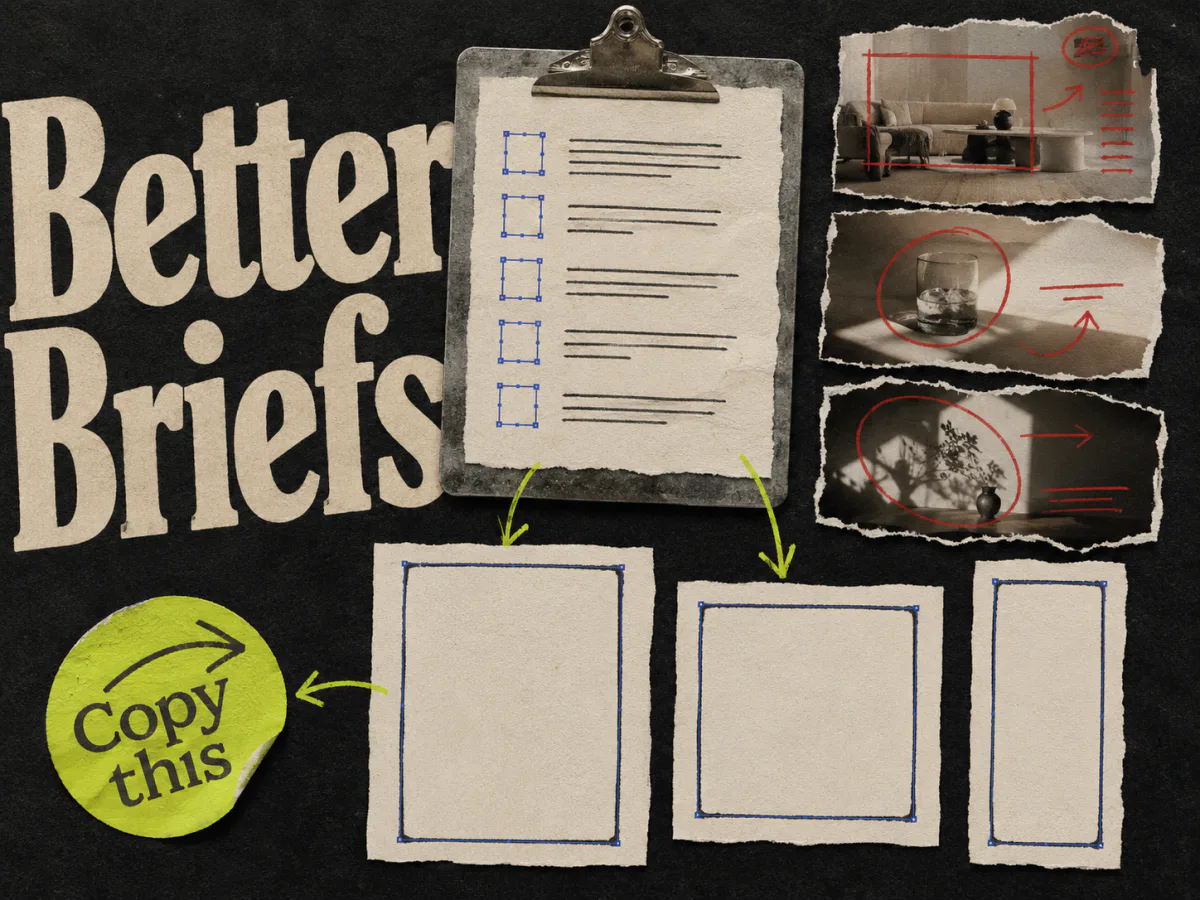
Do not confuse a new SKU or size with a new creative idea. If all three ads make the same argument, you have three product versions of one concept. The ad creative brief template separates the buying reason, the variable being tested, and the requested deliverables.
Check the files that leave the editor
Figma's Buzz export guide lists PNG, JPG, and PDF for static assets. It also notes that an organization may require approval before export. Make the first trial include the actual person who will download the final ads, so an approval setting does not become a launch-day surprise.
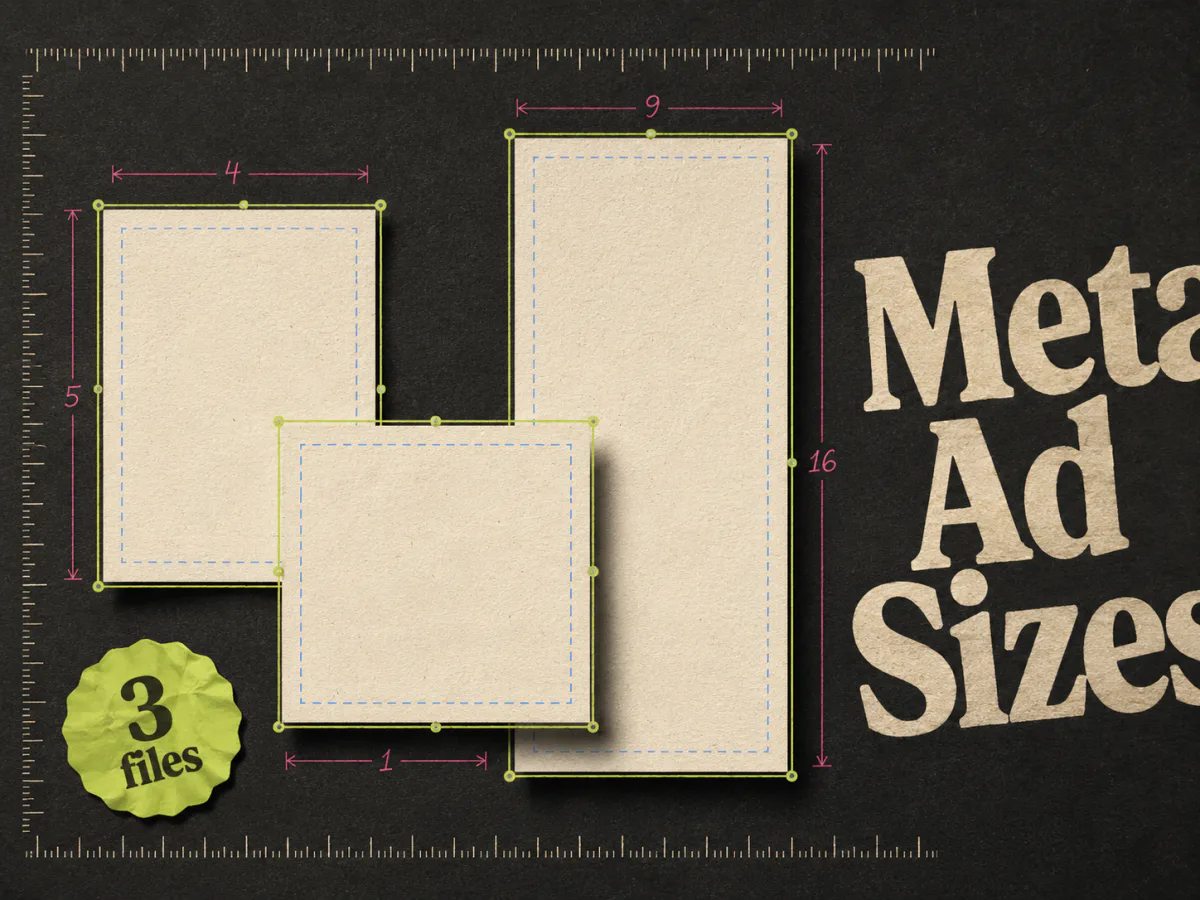
For either product, request the same output set: the agreed Feed and vertical compositions, an editable source, and named files that point back to the brief. Use the Meta ad dimensions guide to specify the placement sizes before design starts. Open each export at its intended size. The product, offer, and any required text must remain legible after the crop.
Ask who can edit the source next month. A flattened image may be fine for launch but painful when a price changes or the product label is corrected. Keep the source and the approved export together in the team's normal review process.
Choose for the team you have
Pick Figma Buzz if your designer already owns a Figma system and the central problem is allowing other people to produce variations without rewriting that system. Test the exact fields they need to edit, then test bulk creation against those restrictions.
Pick Adobe Express if marketers already assemble branded content there and the work includes more than one ad format. Confirm the team's brand and template permissions, then check whether the same approved assets are easy to find and revise. If your organization uses Adobe tools for design handoffs, include that existing process in the trial.
If your team has no established library in either product, give both the same approved brief and ask for three finished ads. Measure correction time, access requests, and usable exports. Include the designer's template setup work.
Our static ad makers comparison covers other production routes. For this choice, see which editor gets your team from approved design to revised ads with less cleanup.
Where Adrio fits
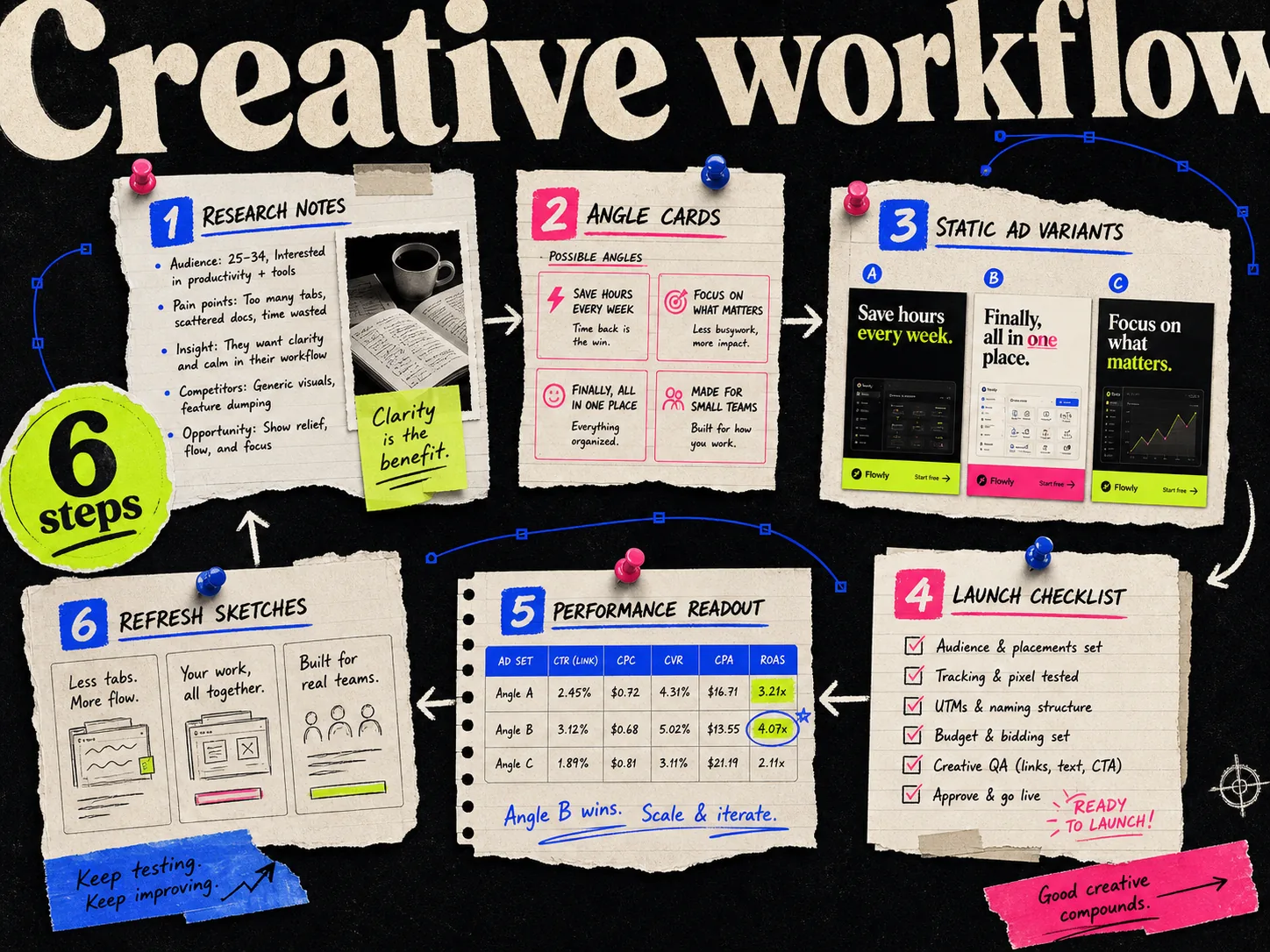
Adrio helps turn product context and ad references into concepts to test. Spark can plan and generate Meta creative, which still needs the same claim, product, crop, and approval checks. The Meta creative workflow connects that work to a brief and a later performance read.
You can also use Buzz or Express after the concept is settled. Try editing one Adrio export in your chosen editor before designing a handoff around it. A flattened file will not magically recover editable text layers. Keep the original source and brief available to the person making revisions.
Questions teams ask before choosing
Can Figma Buzz and Adobe Express both make ad variants in bulk?
Yes. Buzz maps CSV or XLSX data to an asset's fields; Express maps a CSV to elements in a design. Check how many variants remain accurate and editable after review.
Does Figma Buzz replace Figma Design?
Buzz gives marketers a simpler place to work with assets and team templates. Designers can bring work over from Figma Design. The two products have different roles in that handoff; check whether your team needs both.
Which is better for Meta ads?
Choose from the workflow around the ad. Buzz has a strong case when a Figma designer needs to set editing boundaries for marketers. Express has a strong case when the team already uses Adobe brand assets and wants to keep routine production there. Make one ad set in both, inspect the exports, and let the revision work settle the decision.