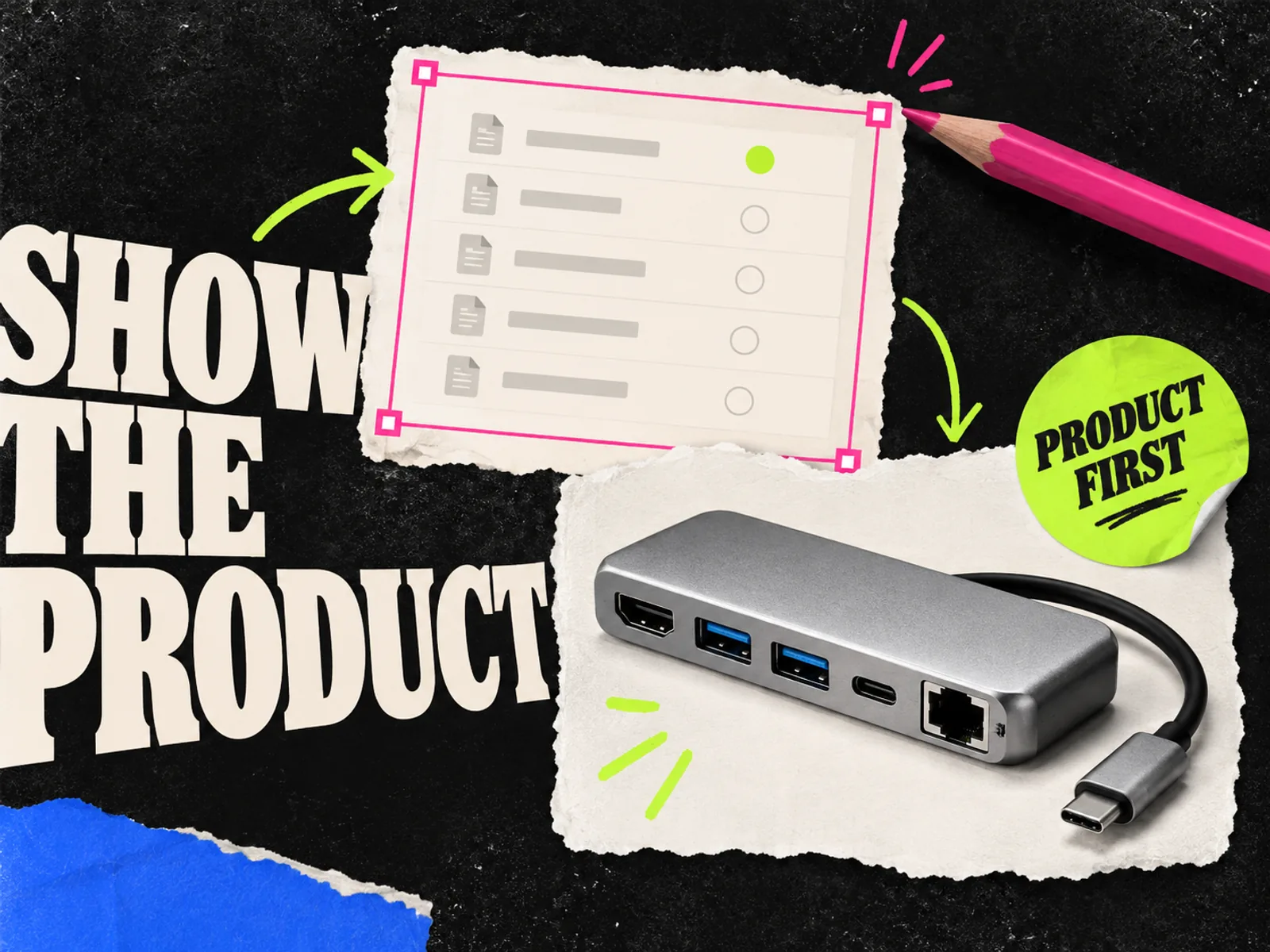
AI ad creative for tech brands works best when you can show what the product does. For software, that might be a screen showing which files need approval. For a device, it might be a close-up of the connection a buyer keeps asking about.
AI can help draft the message and explore the composition. Supply the actual interface or product photo yourself. A convincing image of a feature you do not sell is a bad ad, however good the lighting looks.
This workflow covers static ads for software and physical tech products. The examples are invented briefs, not customer campaigns or measured results.
Start with a buyer question you can show
"An AI platform for modern teams" gives a designer very little to work with. "Which files are still waiting for approval?" suggests both a message and a screen worth capturing.
Choose a question that comes up in sales calls, support tickets, or product research. Then find the part of the product that answers it. If the answer takes a long explanation, narrow the ad to one step and let the landing page handle the rest.
| Buyer question | Useful visual evidence | What to leave out |
|---|---|---|
| Which files need my review? | A real filtered approval queue with sample content | A dashboard full of unrelated charts |
| What happens after I submit a request? | The actual request status and next action | Invented automatic approvals |
| Will this dock fit my setup? | The exact model and its documented ports | Cables or adapters that suggest unsupported compatibility |
| Can I take this device with me? | A real photo that makes its size clear | Unsupported battery-life or durability claims |
The ad angles guide can help you turn those questions into different reasons to buy. Keep each ad focused enough that you can point to the evidence for its headline.
Prepare the product evidence before prompting
For software, capture the current released interface in a demo workspace. Use sample names and records you are allowed to show. Keep the original screenshot, along with the product version and capture date, so the next person can check it after a release.
Crop around the relevant action, but keep enough context to explain what the viewer is seeing. A floating green button means little on its own. Show the file it belongs to and why someone needs to click it.
For hardware, gather photos of the exact SKU, its included accessories, and the relevant specifications. A model with an extra port can look almost identical in a small product photo. Confirm which one you have before building the layout.
Write down any limits that affect the promise. Does the software feature require a particular plan? Does the dock need a compatible host device? Keep those details beside the assets instead of relying on the designer to find them on the website.
Your working folder should contain the approved visual, the claim it supports, the destination page, and a note about what must stay unchanged. Add the reviewer responsible for product accuracy to the creative brief.
Tell AI which facts it can use
Use AI to propose ways to explain a feature you have already verified. Give it source facts, a buyer, and a defined output. Asking for "high-converting SaaS ads" leaves too much room for made-up benefits.
Here is a copyable prompt for an illustrative approval tool. Replace the facts with your own before using it:
Write four static ad concepts for a file approval tool. Audience: project managers who chase review status in chat. Approved facts: a reviewer can open a queue filtered to files awaiting their approval; each file has a status; the reviewer can leave a comment. Visual available: a current screenshot of that queue using sample files. Destination: a walkthrough of the review queue. For each concept, write a short headline, one supporting sentence, and a layout description. Use only the supplied capabilities. Do not add time savings, customer quotes, integrations, security claims, or automatic decisions. Flag any idea that needs evidence we have not supplied.
Read the output with the source facts open. "See what's waiting for your review" fits the brief. "Approve every project in seconds" adds a speed promise and a broader capability. Rewrite it.
For hardware copy, dimensions and port types should not turn into "works with every laptop." Check what the model added, even when the prompt told it to stick to the facts.
Build one software ad around the real screen
For the approval-tool example, start with the headline "See what's waiting for your review." Put the relevant queue below it and use one callout to identify the status that matters. The screenshot should carry the explanation.
Try the composition at roughly the size someone will see on a phone. If the queue becomes a blur, crop tighter or show a simpler action. Enlarging the headline does not fix an unreadable demonstration.
Keep the screenshot as an image layer and the headline as editable text. You can then replace an outdated screen without rebuilding the whole ad. Keep annotations outside the interface visually distinct, so a marketing callout does not look like a product control.
Canva's image upload workflow lets you bring your own images into a design. Adobe Express supports adding text to screenshots. Try either if you need to arrange an approved capture with editable copy. This is a workflow recommendation based on their documented features; campaign performance still needs testing.
Before choosing a tool for regular production, make one deliberate correction: replace the screenshot and shorten the headline. Check whether the layout remains usable. That tells you more about the editing work than a gallery of attractive first drafts.
For hardware, keep the device exact
Consider an illustrative USB-C dock campaign built around a common question: "Where does everything plug in?" Start with a real photo of the dock's port side. Add labels based on the documentation for that model, then show a compatible setup if you have a suitable approved photo.
AI-generated surroundings can give the ad a different visual treatment. Generate the background separately when preserving the device is essential. Adobe Firefly's image-generation guide documents text prompts and model-dependent controls; use those to describe the setting rather than asking it to reconstruct the dock.
For example, request an empty desktop photographed at the same angle as your product image, with room for the copy. Place the approved device into that scene in your editor. Check its scale and shadow before keeping the composition.
The final review needs to go beyond the device itself. A cable plugged into the wrong port or a display arrangement the dock cannot support changes the product claim. Use a real setup photo when the connections are the point of the ad.
Review the promise in the picture
Product accuracy is easier to check before a batch has been resized and exported. Ask the product reviewer to compare the ad with the source capture or photo, then open the landing page beside it.
Check the following:
- The screen shows a released feature available to the advertised audience.
- Sample records cannot be mistaken for customer testimonials or measured outcomes.
- Device details, accessories, and connections match the exact model.
- The headline says no more than the visual and product documentation support.
- The destination demonstrates the same task and explains relevant plan or compatibility limits.
- The product still makes sense when viewed at phone size.
Prepare placement-specific compositions using the Meta ad sizes guide, then inspect the exports with the ad preview checklist. A crop that removes the relevant status or connector removes the explanation too.
Compare concepts with a clear question
A software team might compare an ad showing the review queue with one showing the comment action. Those are different product messages. Record which task each ad explains and use a destination that follows through on it.
If the question is only about headline wording, keep the screenshot and offer consistent. Avoid drawing a conclusion about the headline when the second ad also shows a different feature.
Choose the business outcome before launch. A demo campaign needs a way to assess the enquiries it produces; an ecommerce device campaign needs purchase results. Attention alone will not tell you whether the explanation attracted the right buyer. Small or uneven results may leave the comparison unresolved.
Adrio brings ad reference research and static creative production into the same workspace. Supply the approved assets and claim notes, then check that your edits preserve the screen or device. If a generated draft changes those details, assemble the ad with the original image in your design editor.
Save the source assets and editable design with the export. When the product changes, the team should be able to find every ad showing the old screen or model.
FAQ
Can AI generate the interface shown in a software ad?
It can produce interface-like imagery, but use a current product capture when the ad is demonstrating your software. Keep explanatory illustrations clearly separate from anything presented as the actual interface.
Which AI tool should a tech brand start with?
Start with the missing part of the workflow. Use a writing assistant for concept drafts, an image generator for a separate background, and an editor for the approved product visual and copy. Trial one complete ad before choosing a larger tool stack.
Should a tech ad show the whole dashboard?
Only when the whole view is necessary and readable. A crop around one useful action often gives you a clearer demonstration. Keep enough context to show what the action does.